
How To Submit a Complaint as a Guest
This guide will walk you through the two ways to submit a complaint on the Build Henrico customer portal. First as a Guest, then as a Registered User.
You will start on the Build Henrico customer portal home page.
Under the “Submit a Complaint as a Guest” section, click the ‘submit a Complaint’ link to begin the process.
You will be directed to a page where you will begin the complaint process.
NOTE: There are only a few complaint categories that are allowed to be submitted anonymously. All other categories will require contact information, but not a registered account.
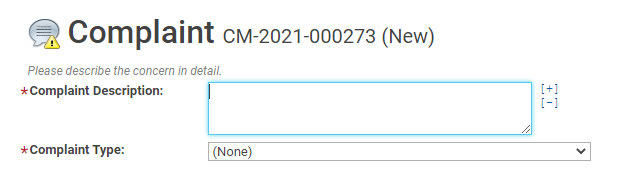
Your Complaint will be assigned a number, designated at the top of the page. Please fill in the following information:
Complaint Description: This is where you enter your concern in as much detail as possible.
Complaint Type: Please select from the drop down menu, the type of complaint most closely associated with your concern.
NOTE: Both of these fields are required as noted by the red asterisk. (*)
Next we ask that you ‘pin’ in the location of the complaint on the map. Do this by typing in the address in the search bar located in the top left corner of the map, Or, simply scroll in and drag the map to a location. Once you have found the location on the map, click on the spot to drop a red pin.
NOTE: The pin will move if you select a different location on the map. Please put the pin as close to the
location of the complaint as possible.
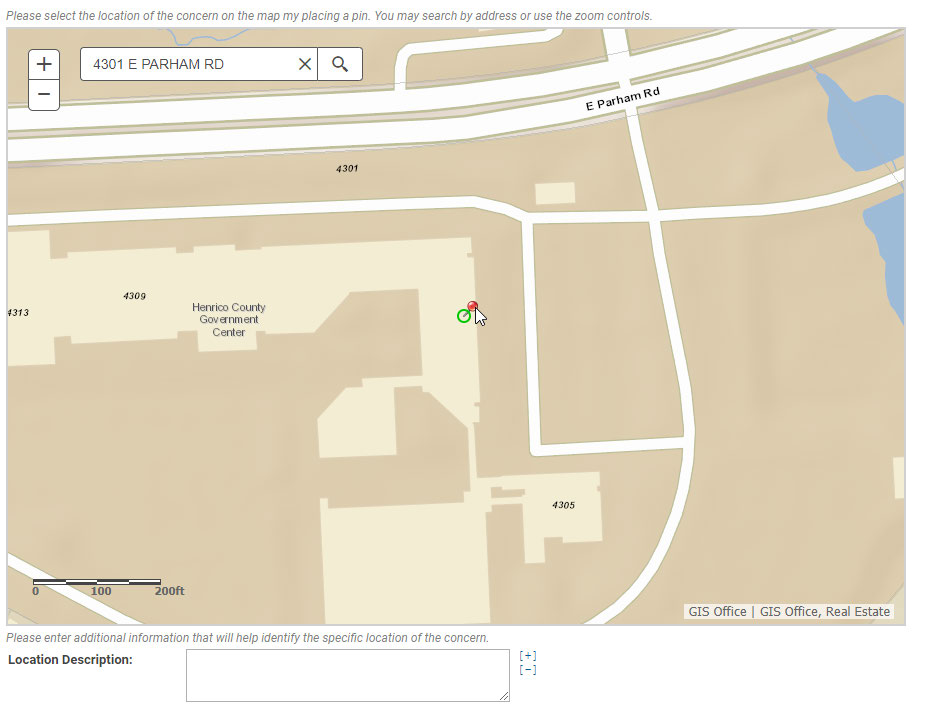
Fill in the ‘Location Description’ below the map with additional information that will help identify
the specific location of the concern. Example: “Overgrown weeds are along the left hand side of the
property when facing the house.”

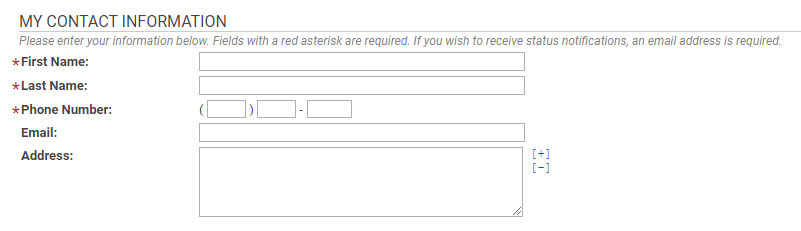
The next section is for “My Contact Information.” This information will be used to follow up with
any additional questions or concerns our staff might have regarding the complaint. You are also
encouraged to include an email address if you would like status updates on your complaint, but an
email address is not required.
* First Name:
* Last Name:
* Phone Number:
Email:
Address:
The “Supporting Files” area allows you to upload pictures or documentation to support your concern. These files also help our staff with documentation of the complaint.
Build Henrico supports the following file types:
PDF
.docx
PNG
JPEG
To add content, click the ‘+Upload File’ button.
A pop up window with a red banner asking to ‘Select files’ will display with an area for you to upload your files.
Start by clicking the ‘+Add files’ button.
Add as many files to the queue as you would like. Enter a ‘*Description’ in the text box with information about the file you are uploading.
Once you have added a description to all of your files, click the ‘Start Upload’ button.
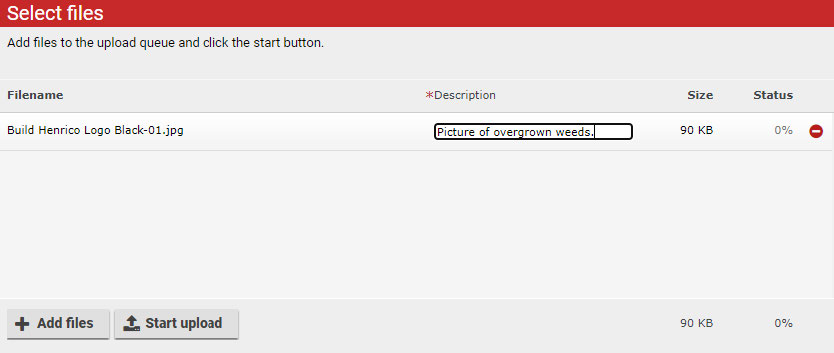
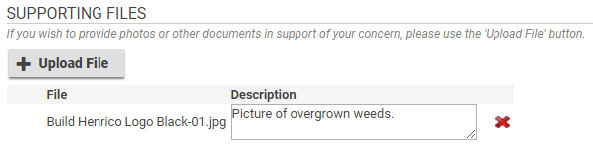
You will now see your files associated with your complaint.
At this time, you have the option of either editing the ‘Description’ text by typing in the text field. You can also remove any files you no longer wish to submit by clicking the red ‘X’ next to the file.
Before submitting your complaint you must enter the code you see. NOTE: If you have a hard time seeing the letters, click the ‘Speaker Document‘ button to the right of the letters.
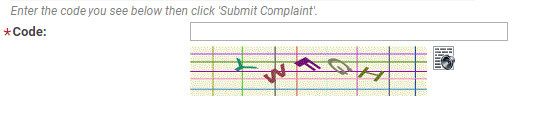
Click ‘Submit Complaint.’
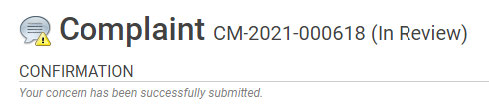
You will receive a ‘Confirmation’ screen that your complaint was successfully submitted.
How to Submit A Complaint As A Registered User
You will start on the Build Henrico customer portal home page.
Log into the portal by entering your ‘Email Address’ and ‘Password.’
Click the ‘Sign In’ button.
When successfully logged in, you will be taken to the “Home” page.
To start a new complaint, click the ‘Complaints’ link to the right of the blue arrow.
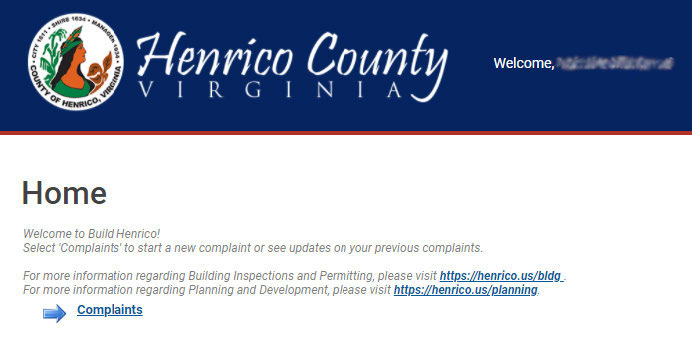
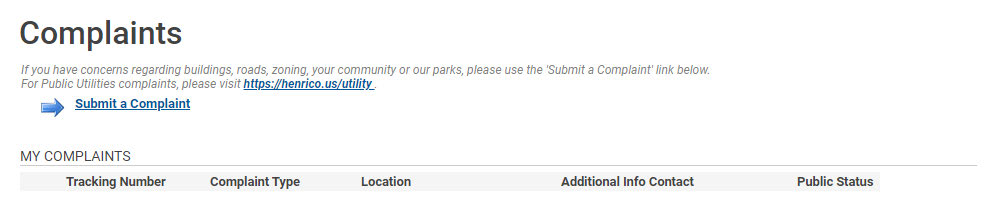
You will be taken to the “Complaints” page where you can submit a new complaint, as well as track all of your past complaints entered into the Build Henrico system.
Under the “My Complaints” section, all previous complaints will be listed with the following:
Tracking Number: This is the number of the complaint.
Complaint Type: This is the type of complaint you submitted.
Location: This is the location of the complaint.
Additional Info Contact: This will show information about the
Investigator assigned to the complaint.
Public Status: Shows where the complaint is in the process.
Start a new complaint by clicking the ‘Submit a Complaint’ link.
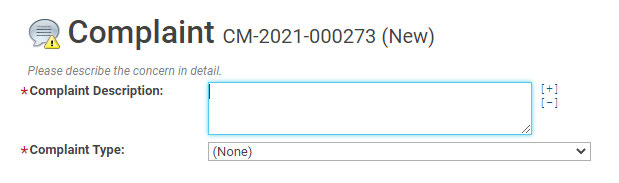
Your Complaint will be assigned a number, designated at the top of the page. Please fill in the following information:
Complaint Description: This is where you enter your concern in as much detail as possible.
Complaint Type: Please select from the drop down menu, the type of complaint most closely associated with your concern.
NOTE: Both of these fields are required as noted by the red asterisk. (*)
Next we ask that you ‘pin’ in the location of the complaint on the map. Do this by typing in the address in the search bar located in the top left corner of the map, Or, simply scroll in and drag the map to a location. Once you have found the location on the map, click on the spot to drop a red pin.
NOTE: The pin will move if you select a different location on the map. Please put the pin as close to the location of the complaint as possible.
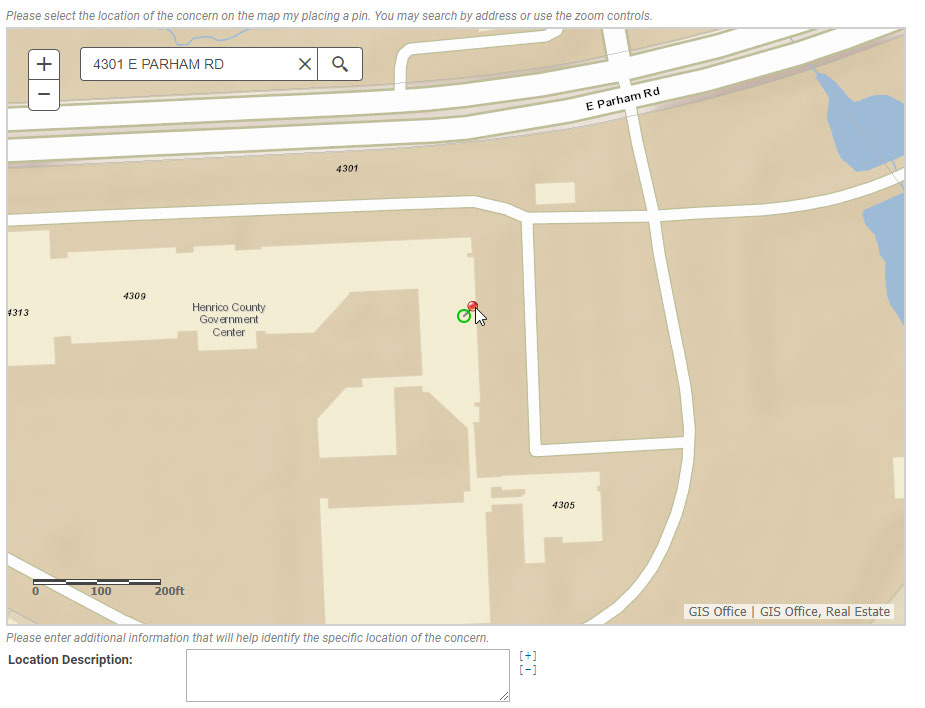
Fill in the ‘Location Description’ below the map with additional information that will help identify the specific location of the concern. Example: “Overgrown weeds are along the left hand side of the property when facing the house.”

The “Supporting Files” area allows you to upload pictures or documentation to support your concern. These files also help our staff with documentation of the complaint.
Build Henrico supports the following file types:
PDF
.docx
PNG
JPEG
To add content, click the ‘+Upload File’ button.
A pop up window with a red banner asking to ‘Select files’ will display with an area for you to upload your files.
Start by clicking the ‘+Add files’ button. Add as many files to the queue as you would like. Enter a ‘*Description’ in the text box with information about the file you are uploading.
Once you have added a description to all of your files, click the ‘Start Upload’ button.
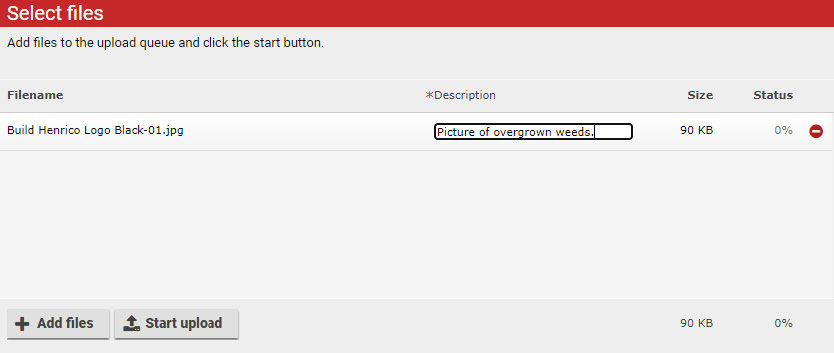
You will now see your files associated with your complaint.
At this time, you have the option of either editing the ‘Description’ text by typing in the text field. You can also remove any files you no longer wish to submit by clicking the red ‘X’ next to the file.
Click ‘Submit Complaint.’
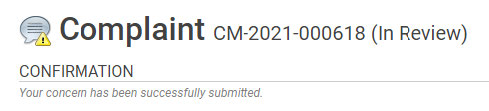
You will receive a ‘Confirmation’ screen that your complaint was successfully submitted.
The complaint you submitted will now show in your “My Complaints” area of the Build Henrico customer portal.