
At the Build Henrico website home screen, click on Land Development Applications. Then choose the type of application. Click on Appeal.
In the Description of Proposed Activity put a short description of Appeal request. Use the drop-down options to make a selection. When all required fields have been filled out, click Next.
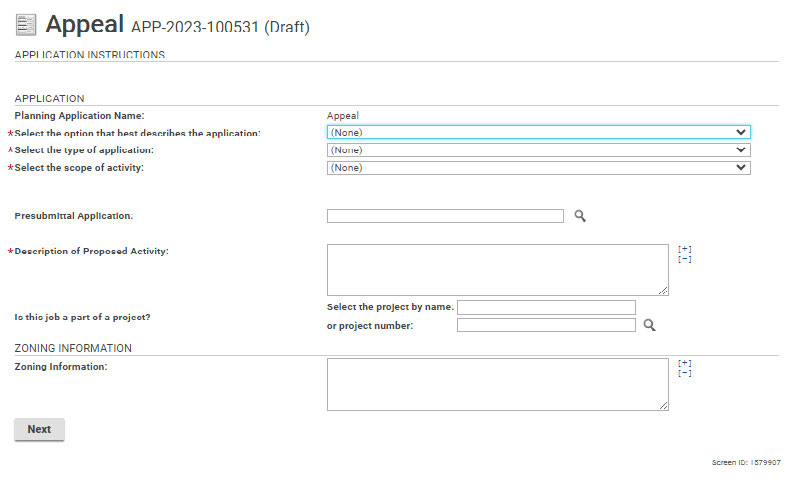
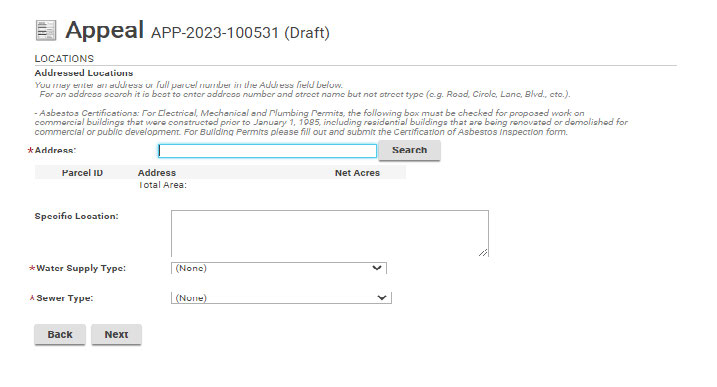
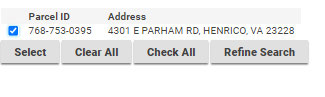
Enter the address and click Search. Click on the correct address and then click Select. Note: when entering an address do not add the street type (e.g. Road, Circle, Lane). * asterisk indicates a required field.
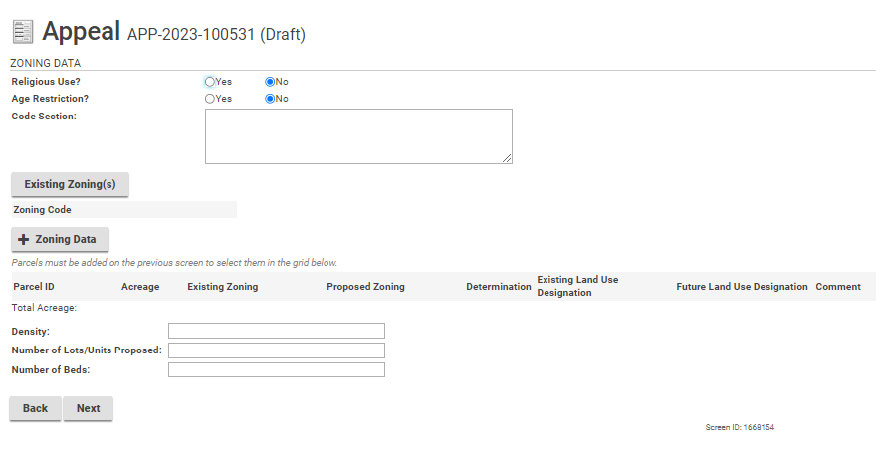
The page below does not apply to Appeals. Click Next to continue with the application.
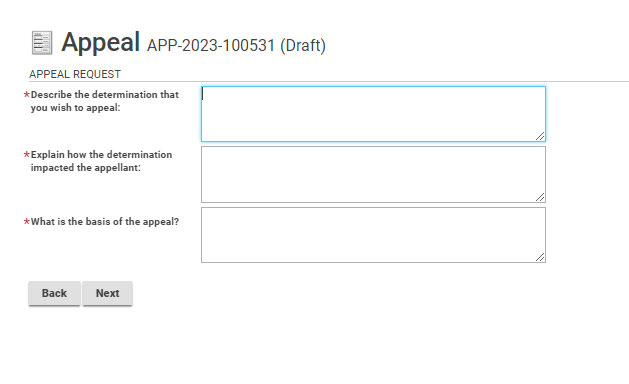
Write a short description in each box provided. Reminder that (*) indicates required information.
The next page, asking for non-profit information, does not apply to most Appeal applications. Click Next to continue with the application.
A Justification of Appeal is required for all Appeal applications. Use the + Upload Files to upload the needed documents.
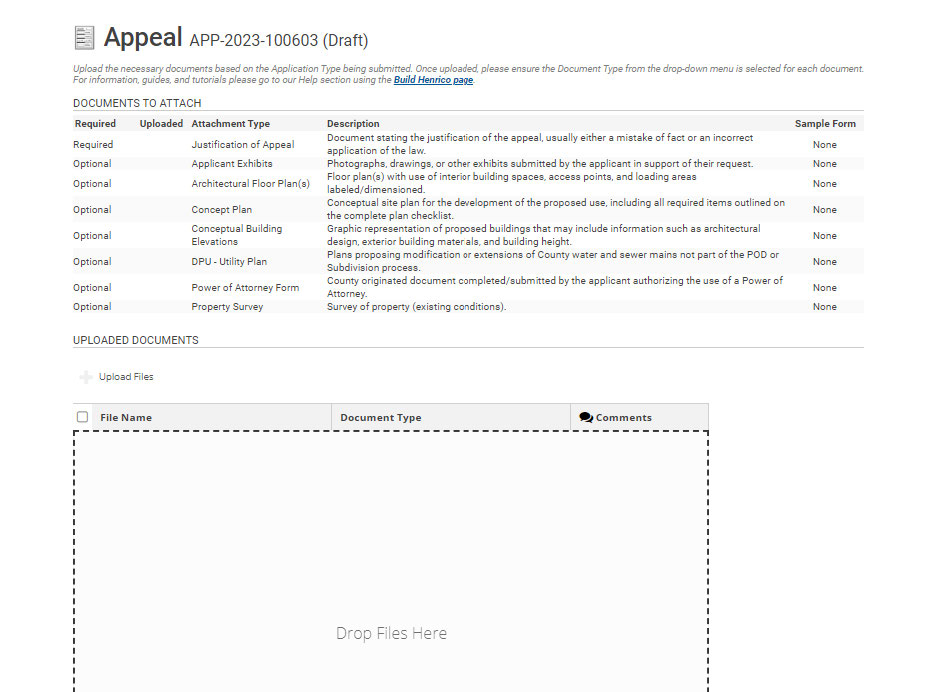
Once the documents have been uploaded, use the drop-down option to add the document type. Then click Next.

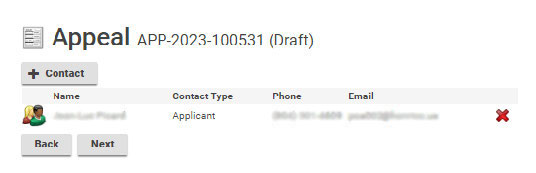
Use this screen to add any contacts that may be associated with this project. Click the icon to the left of the contact name to update the applicant information and subscribe to notifications.
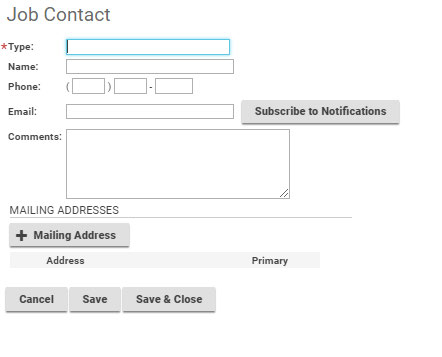
Fill in the contact information.
When adding a contacts, please Subscribe to Notifications in order for everyone associated with the Appeal to receive updates on its progress. Click Save & Close when complete.
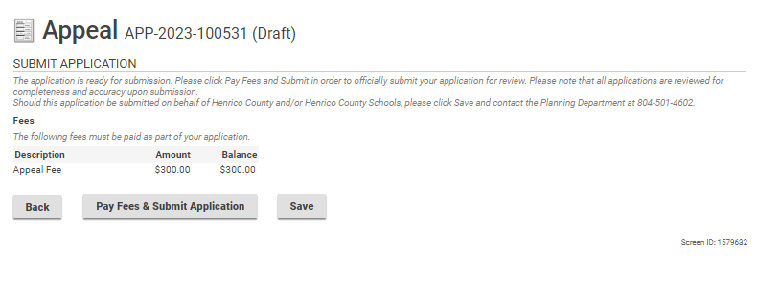
Click Pay Fees & Submit Application. You will then be redirected to the Paymentus application in order to submit required fees. After paying the fees, you will receive an email confirming the application is complete.
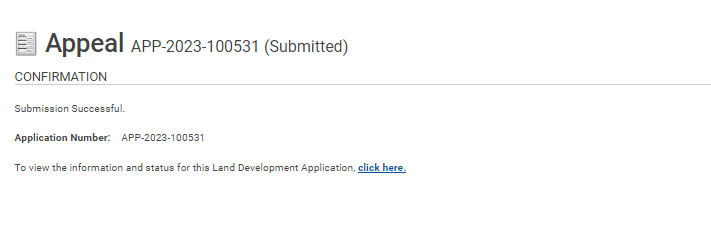
The Appeal application has been successfully submitted.