
Land Use Approvals: Rezoning, Proffer Amendments, Or Provisional Use Permit
Zoning: Zoning provides the standards and regulations of how properties can be lawfully used and developed in the County.
Rezoning: Rezoning is a process where the Board of Supervisors approves a request to change the zoning classification of a piece of property or properties in order to develop or use the land for purposes other than what is permitted by the current zoning classification. The property owner or representative with a Power of Attorney may request either a conventional rezoning or a conditional rezoning. A conventional request proposes to change the existing zoning district classification to another classification which permits the proposed use. A conditional request permits the same action as a conventional request but it allows the owner to voluntarily proffer (offer) conditions which may enhance the proposal or address concerns of nearby property owners.
Provisional Use Permit (PUP): The Provisional Use Permit procedure provides for certain uses which are permitted in a district but which may be approved with conditions or restrictions that make them compatible with surrounding properties.
What is the procedure for applying for a Rezoning, Proffer Amendments, or Provisional Use Permit?
Before you submit an application for rezoning or a provisional use permit, you must first contact the Planning Department at (804) 501-4602 to set up a Preliminary Review Meeting with a member of the Comprehensive Planning Staff. The purpose of this meeting is to assist you with the process and to discuss the materials required for your application. In general, potential applicants must submit:
Completed application; a written legal description of the property if it is an acreage parcel or the lot, block and section numbers if it is located in a recorded subdivision; a survey plat or recorded subdivision plat; Filing Fee (amount to be determined by nature of request and acreage); Proffered conditions, if submitting a conditional rezoning request.
Application Documents can be found on the Planning Department homepage under Services at https://henrico.gov/services/planning-rezoning-and-provisional-use-permit/ .
Approval of rezoning or provisional use permit request can take as little as 11 weeks or it may take several months, if deferrals are requested. The submission deadline for any given Planning Commission public hearing is approximately 8 weeks prior to the meeting; see the schedule of submission deadlines for more information. Cases acted on by the Planning Commission in any given month will be scheduled for public hearing by the Board of Supervisors the following month. For instance, requests filed by March 15th would be scheduled for Planning Commission public hearing on May 10th, and if acted upon, would then be scheduled for Board of Supervisors public hearing on June 12th. The Planning Commission considers rezoning and provisional use permit requests on the first Thursday following the second Wednesday of the month. On rare occasions, a public hearing on a case may be deferred to another meeting.
For more information, please visit the Planning Department: Rezoning and Provisional Use Permits page at https://henrico.gov/planning/planning-commission-rezoning-provisional-use-permits/ .
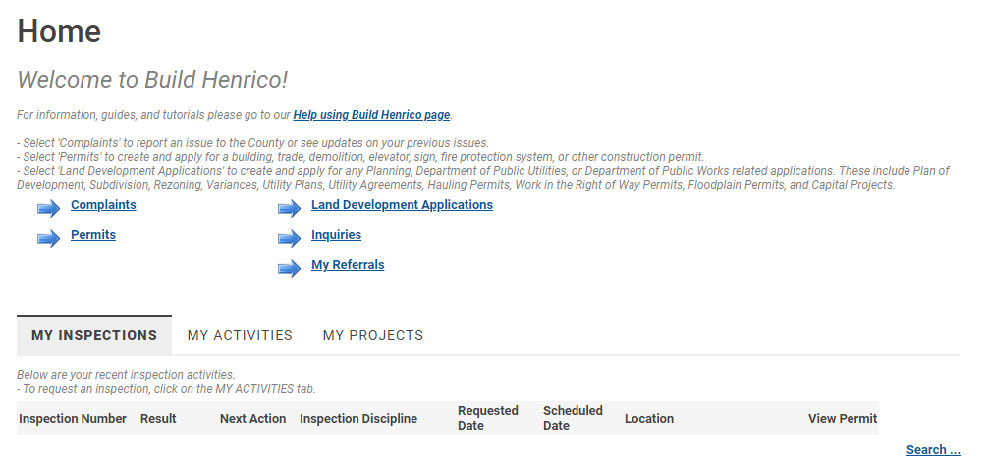
To begin, navigate to build.henrico.gov and log in or create an account if you have not done so.
Begin the Application
Click the “Land Development Applications” link to view the various application types including Rezoning, Proffer Amendments, and Provisional Use Permits.
Start the Draft Application
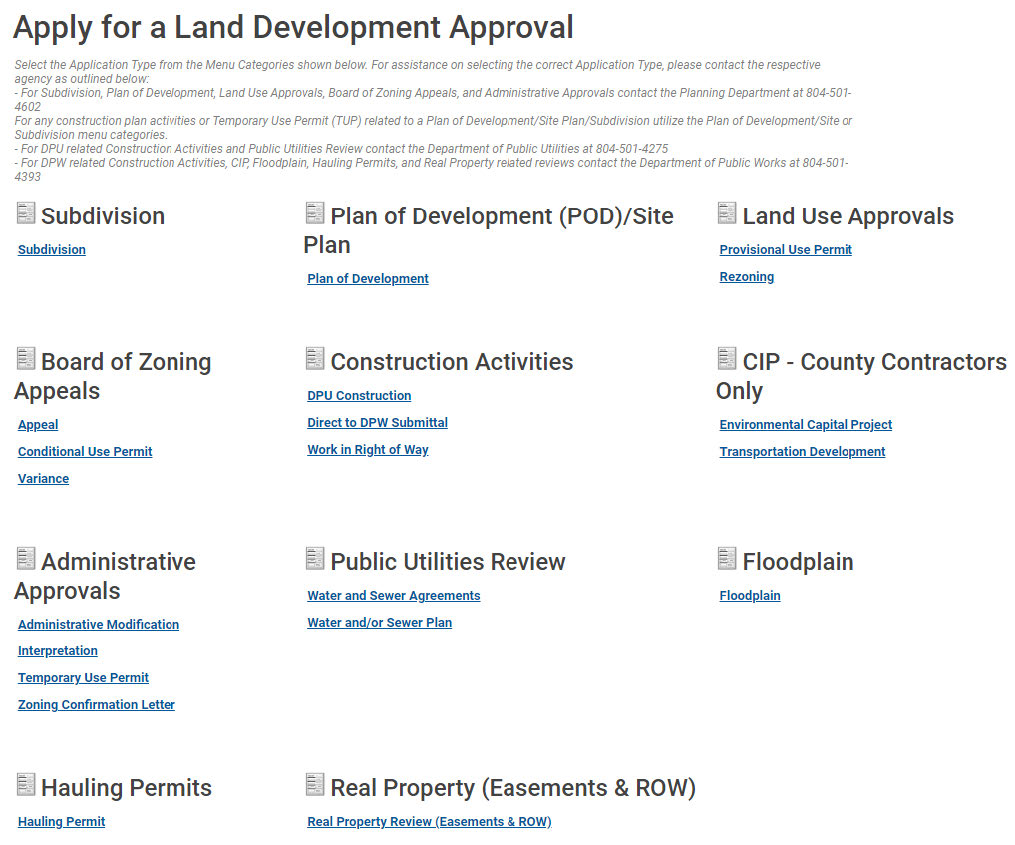
To start a draft application, click the appropriate link: Provisional Use Permit or Rezoning & Proffer Amendments.
*Important Note: Be cautious about what you click as any link automatically creates a draft submission*
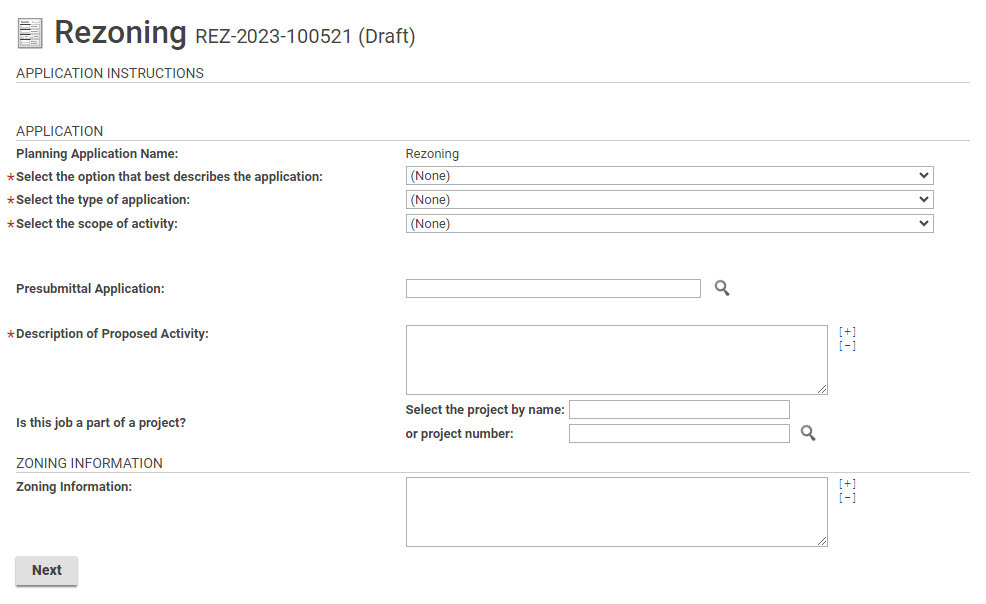
Throughout the entire application, anything with an * is required to submit.
Fill in Zoning and Activity Information
NOTE: additional fields are required for the application to be viewed as complete by County standards.
Under the Planning Application Name, for each of the first three drop-downs, select the option that best fits. Do NOT fill in the Presubmittal Application.
For the Description of Proposed Activity, provide a written description of the request.
- If the rezoning has a companion case, note it here.
- If a proffer amendment, state the original case #.
Do NOT fill in “Is this job part of a project?”
The Zoning Information box is optional.
Fill in Address Information
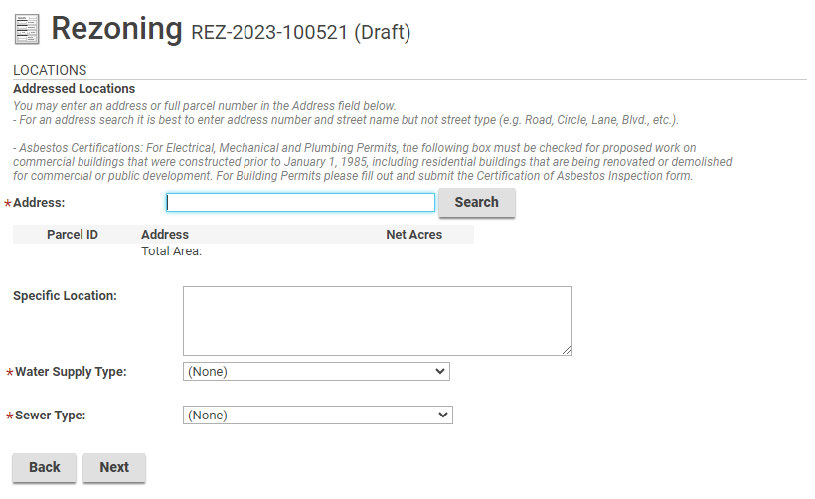
Type in address or FULL parcel number and click the “Search” button. A pop-up window titled “Add Addresses” will appear, shown below.
Select the correct address by clicking the box icon, then click the “Select” button. If more than one parcel is involved, repeat the steps until all parcels are listed on the screen, and then select a Primary Address from the new field that was generated.
The Specific Location is optional.
For the Water Supply and Sewer type, fill out the most applicable option from the drop-down.
Fill in Zoning Data
For the first three items, fill out Religious Use, Age Restriction, and Code Section fields. The Code Section item is optional. It is applicable to Provisional Use Permit applications.

Click the “+ Zoning Data” button to fill in the information.

The comments box is the only optional field. Ensure all other fields are completed. For projects with multiple parcels, select “+ Zoning Data” and enter data for EACH parcel. If a parcel has multiple existing or proposed zoning districts, add a row for EACH distinct zoning. If the parcel was not added in Step 4, go back to add it. Ensure the acreage and proposed zoning fields are accurate as the fees will be determined based off information provided.
The “Density” section of the page is optional.
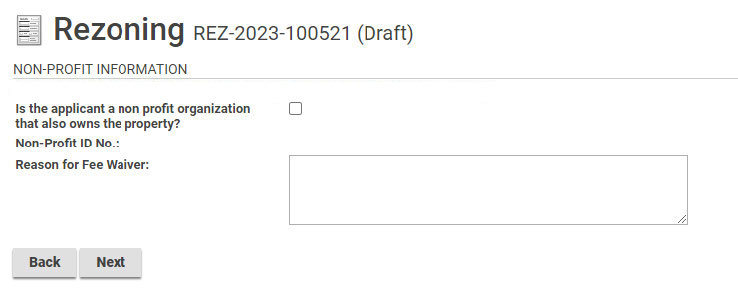
Non-Profit Information
This is NOT APPLICABLE to Rezoning, Proffer Amendment, or Provisional Use Permit applications. Choose the Next button to proceed.
Attaching Documents
While “Application Signature Document” and “Plat and Legal Description for Rezoning/PUP” are the only required documents per the system, additional documentation may be required depending upon the application type. Please see the application checklist found on the Planning Department home page.
For example, “Power of Attorney Form” would be a required document if an attorney was acting on the behalf of the applicant or owner.
Click the “Upload Files” button to open a pop-up window to upload necessary documents. Ensure the document shows the “New” icon before clicking Next.
You must assign a document type to EACH document uploaded. Click to open the drop-down menu for Document Type. Select the appropriate option.
*NOTE: for Provisional Use Permit applications, the Plat and Legal Description for Rezoning/PUPs” document will be optional.

Professional or Contractor Information
Unless you are a licensed professional/ contractor, please proceed to STEP 9 to enter your contact information on the following page. Most likely NOT APPLICABLE to rezoning, proffer amendments, or provisional use permit applications.

Adding Contacts and Receiving Updates
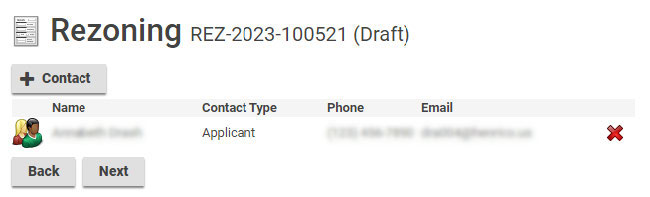
Click “+ Contact”. A pop-up window will appear where you enter all associated contacts: i.e. owner, applicant, and representative.
Must click “+ Contact” for EACH individual. Fill out EVERY field in the pop-up window (type, name, phone number, email, and mailing address) and be sure to select “Subscribe to Notifications” and “+ Mailing Address” for EACH individual.
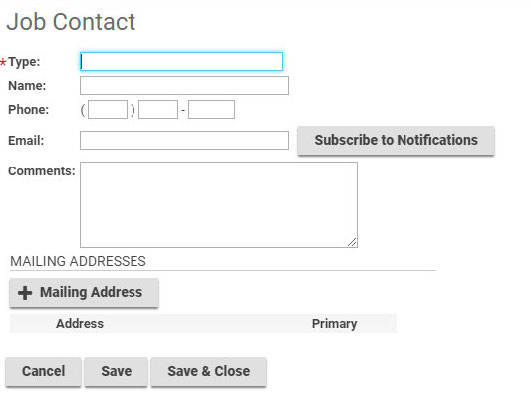
When you click Subscribe to Notifications, you will see the screen below, with Notifications listed and checked. Please un-check the Notifications that you do not wish to receive for this case.
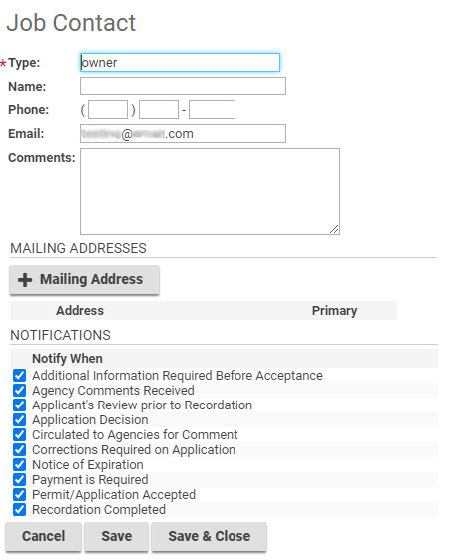
If you click Mailing Address, you will see the screen below as a new pop-up, where you can fill in a mailing address, then choose Save & Close, or Cancel.

Then in the Contacts window, choose Save, or Save and Close, or Cancel.
Prepare to Pay Fees and Submit the Application
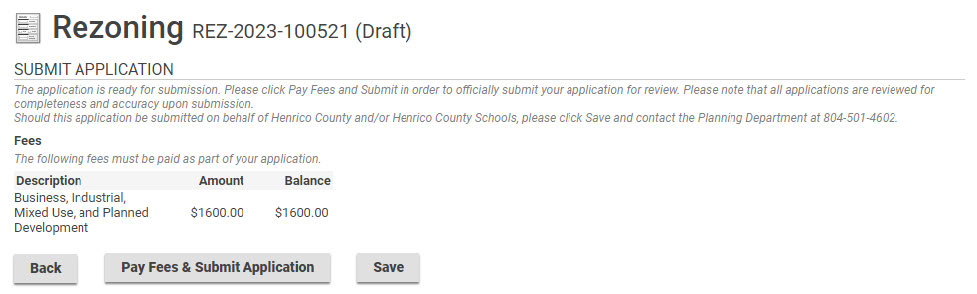
In this step you will pay fees for this application. Select the appropriate option:
- Back button will return you to the previous page.
- Pay Fees & Submit Application button will do just that and move you to STEP 11.
- Save button will NOT submit the application, and it will remain in draft form until the Pay Fees & Submit Application button is selected.
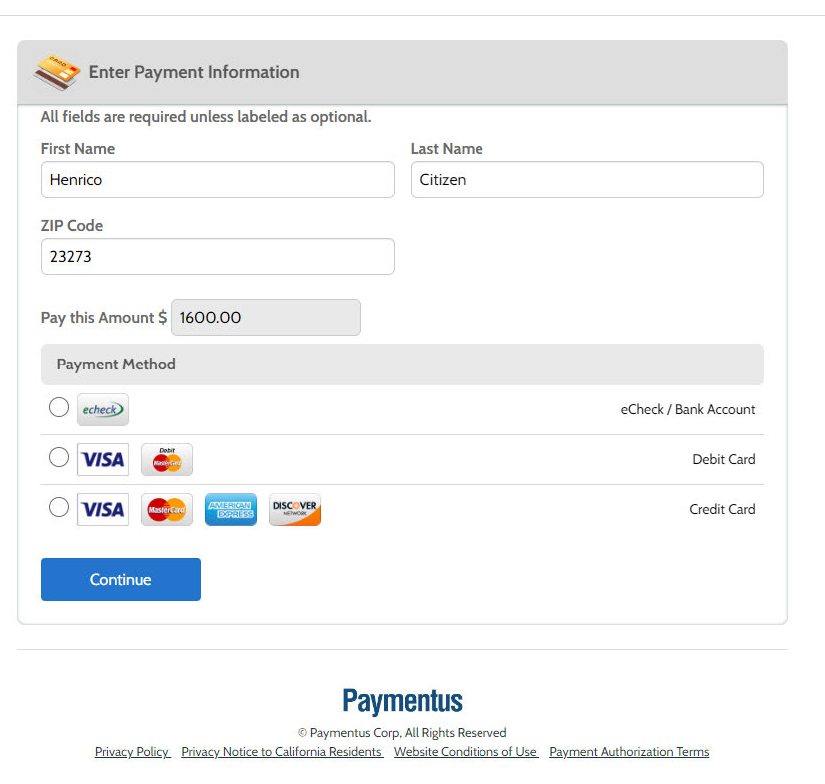
Enter Payment Information
Enter the correct information on the following two screens (STEP 11 & 12). Be sure to select the authorize payment box before paying.
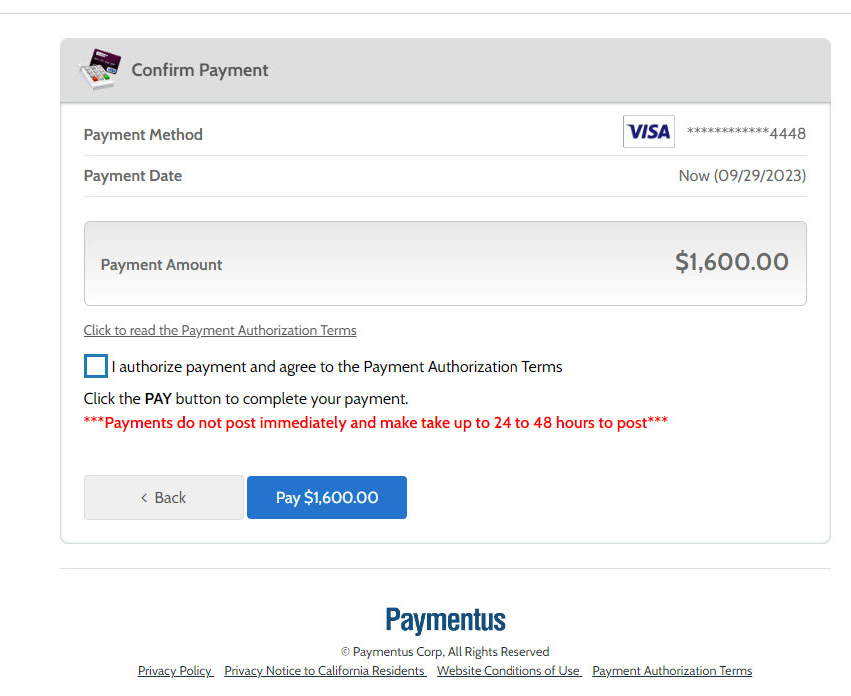
Complete Payment
Check the box to authorize payment, and click the Pay button.
Receive Application Submission Confirmation
After successfully paying, this confirmation page will appear. The application number will be listed in the center.
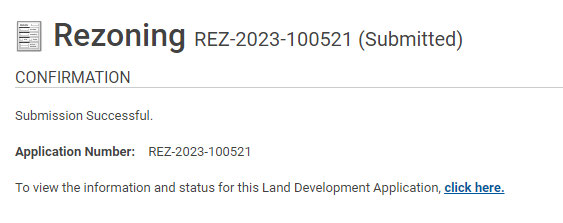
The “click here” hyperlink will open the Posse customer portal, where you can view the application just submitted, as well as any pending drafts or previously submitted applications.
To view submitted cases, go to the Customer Portal and click the “My Activities” tab. Then to open a specific case, select the icon on the beginning of the line of the case.
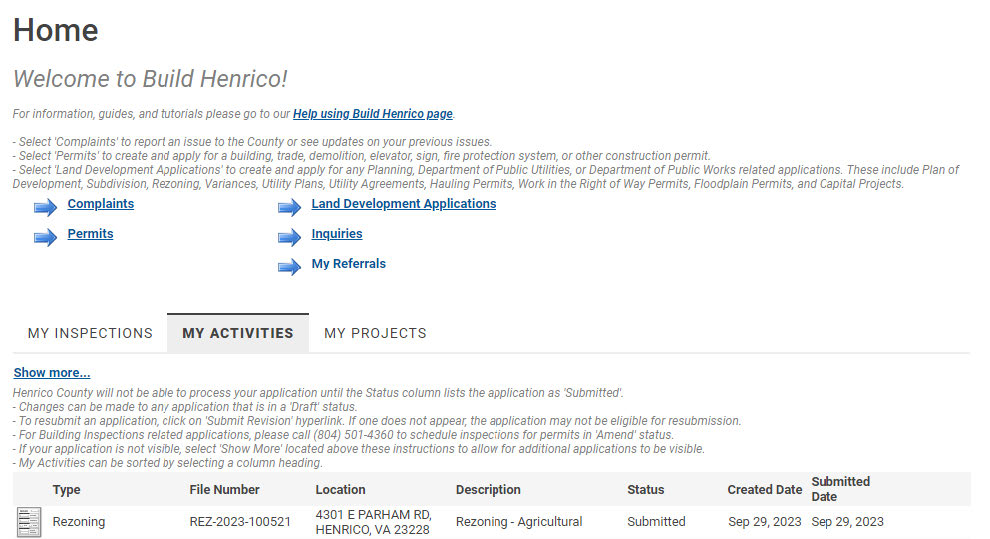
Clicking the paper icon at the beginning of the line will open this screen, where all the application information is housed.
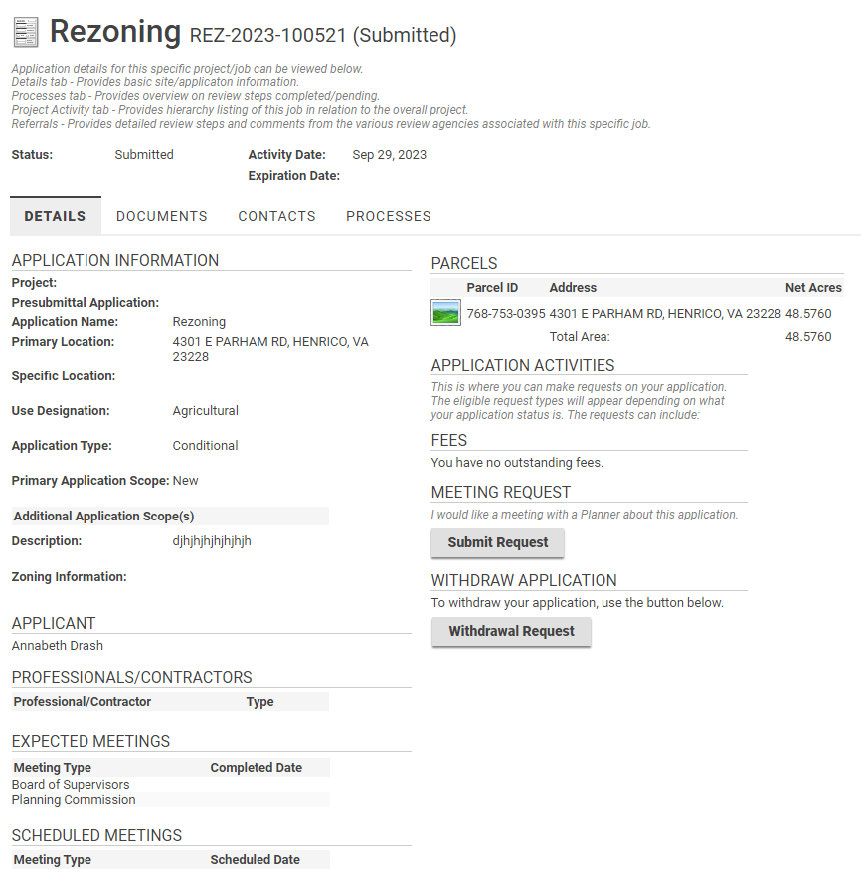
If you wish to withdraw the application at any time, select the “Withdrawal Request” button.